
Download Captain FTP – Secure, Fast, and Intelligent FTP Client
Captain FTP positions itself as a no‑frills, high‑performance file‑transfer solution that still manages to pack a surprising amount of intelligence into a compact UI. Built for users who need reliable uploads to classic FTP/SFTP servers, cloud storage like Amazon S3, and even WebDav endpoints, the program blends “Sync Browsing” – a feature that mirrors your local folder navigation on the remote side – with a clean drag‑and‑drop workflow. Whether you are a web developer pushing updates to a staging server, a photographer moving large batches of images to a remote archive, or an IT administrator automating nightly backups, Captain FTP offers encrypted transfers, scheduled jobs, and automatic resume capabilities that keep the process smooth and secure. Although the maximum single‑file size is capped at 2 GB, the limit covers the majority of everyday FTP tasks, making the client an excellent choice for freelancers, small agencies, and power users who value speed without a steep learning curve. In this review we’ll explore the core features, walk through the installation process, examine OS compatibility, and weigh the pros and cons before helping you decide if Captain FTP deserves a spot on your desktop.
Key Features That Set Captain FTP Apart
- Sync Browsing: Automatically mirrors local folder navigation on the remote server, eliminating the need to click through identical directory structures.
- Multi‑Protocol Support: Full FTP, FTPS (SSL), SFTP, Amazon S3, and WebDav, ensuring you can connect to virtually any server type.
- Secure Transfers: Uses industry‑standard encryption (TLS/SSL, SSH) to protect credentials and data in transit.
- Drag‑and‑Drop Interface: Move files between local and remote panes with a simple mouse gesture, supported by Quick Connect for rapid session launch.
- Virtual Folders: Create logical groupings of remote directories without altering the server’s actual structure, great for organizing multi‑site projects.
- Built‑in Previewers: Inline viewers for movies, images, audio, and PDFs let you verify content without leaving the client.
- Accelerated & Resumable Transfers: Multi‑threaded upload/download engine that can resume interrupted jobs automatically.
- Scheduled Transfers: Set up recurring upload/download jobs that run at defined times, perfect for backups or nightly deployments.
- Growl & System Alerts: Real‑time notifications keep you informed about transfer status, errors, or completion.
- AppleScript & Automation: macOS users can script repetitive tasks, integrating Captain FTP into larger workflows.
- Auto‑Reconnect & Sync Error Handling: The client detects dropped connections and attempts reconnection without user intervention.
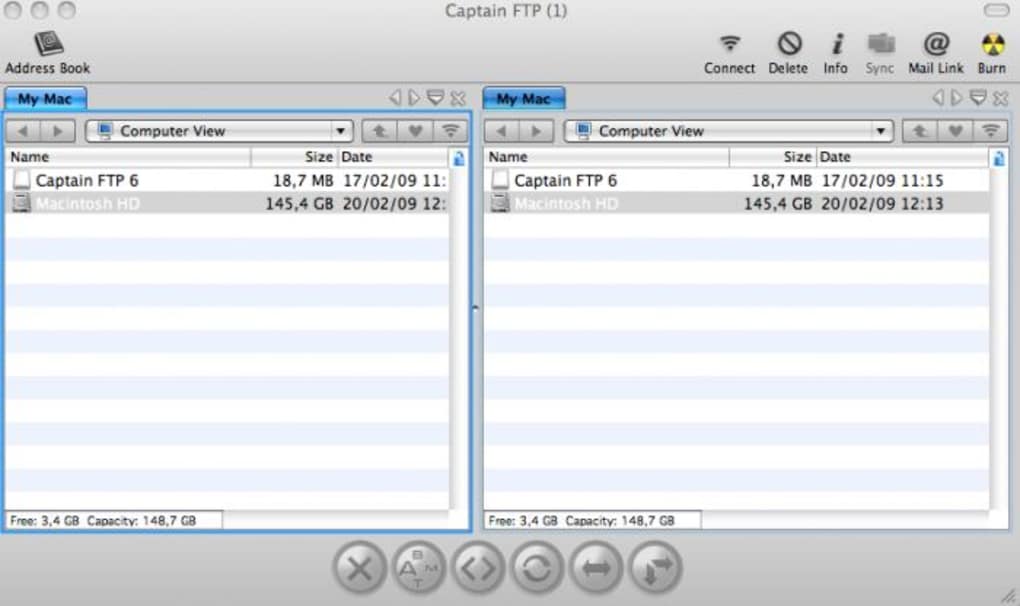
Each of these features is presented in a lightweight window that avoids the clutter common in enterprise‑grade FTP tools. The UI is split into a classic two‑pane view, with a local explorer on the left and a remote pane on the right. Navigation shortcuts, such as the “Up One Level” button and breadcrumb trails, work seamlessly with Sync Browsing, meaning you can explore a deep folder hierarchy locally and watch the remote pane follow you in real time. This intelligent behavior not only saves clicks but also reduces the risk of uploading files to the wrong directory – a frequent mistake when manually matching paths.
Installation, First‑Run Setup, and Daily Workflow
Getting Captain FTP up and running is intentionally straightforward. After downloading the installer from the official website, you launch the .exe (Windows) or .dmg (macOS) file. The installer walks you through a typical “Next‑>Next‑>Finish” sequence, offering an optional desktop shortcut and the ability to associate the program with common FTP file extensions. No additional runtimes or frameworks are required, as the application bundles its own SQLite and XML parser libraries.
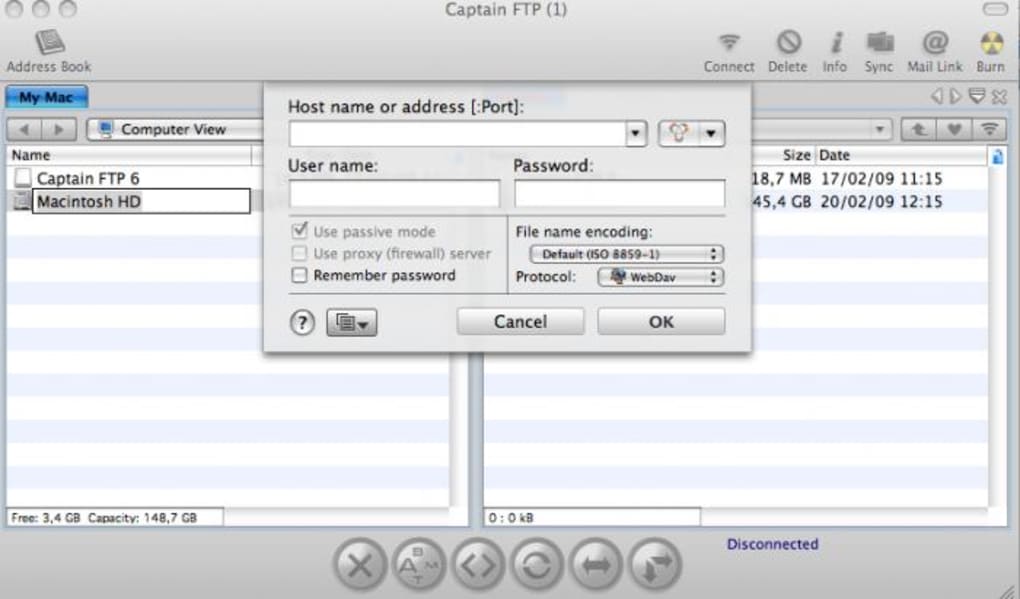
Upon first launch, you are greeted by the Quick Connect bar at the top of the window. Here you can type a server address, username, password, and select the protocol from a dropdown list. For users who frequently access the same hosts, the “Save Profile” button creates a reusable connection profile that appears in the left‑hand sidebar under “Saved Sites.” The profile includes advanced options such as port number, passive mode, and custom SSH keys for SFTP.
The daily workflow typically follows these steps:
- Open a saved profile or use Quick Connect for ad‑hoc transfers.
- Navigate locally to the folder containing the files you want to upload.
- Watch the remote pane automatically match the same path thanks to Sync Browsing.
- Drag files from the left pane to the right pane, or use the context menu “Upload.”
- Monitor the Transfer Manager at the bottom for progress, speed, and any errors.
- If needed, schedule the job via the “Schedule Transfer” button, setting start time, recurrence, and optional email notifications.
Compatibility, System Requirements, and Performance Considerations
Captain FTP runs natively on Windows 7, 8, 10, and 11 (both 32‑bit and 64‑bit). A macOS version is available for OS X 10.12 (Sierra) and newer, supporting both Intel and Apple Silicon Macs via a universal binary. Linux users can operate Captain FTP through Wine, although native performance may vary; the application does not ship a dedicated Linux build.
The program requires a minimum of 256 MB RAM and 50 MB of disk space for installation. For optimal performance, especially when handling many simultaneous connections or large batch uploads, a system with at least 2 GB of RAM and a solid‑state drive is recommended. Network‑wise, Captain FTP benefits from a stable broadband connection; its multi‑threaded engine can split a single file into up to four parallel streams, effectively maximizing available bandwidth.
Security updates are delivered through the built‑in “Check for Updates” feature, which notifies you when a newer version with bug fixes (e.g., recent SFTP connection problems) or library upgrades (such as the SQLite and XML parser updates) is available. The client also respects OS‑level firewall prompts, allowing you to whitelist the application for inbound and outbound traffic.
Pros, Cons, Frequently Asked Questions, and Final Verdict
Pros
- Intuitive Sync Browsing eliminates manual folder matching.
- Broad protocol support including SFTP, FTPS, Amazon S3, and WebDav.
- Secure, encrypted transfers with auto‑resume and error recovery.
- Drag‑and‑drop UI combined with built‑in media previewers.
- Scheduling and automation features suitable for backups and deployments.
- Lightweight footprint and fast start‑up time.
- Regular updates that address security and compatibility bugs.
Cons
- Maximum single‑file size limited to 2 GB, which may affect users handling large video archives.
- No native Linux client; Wine workaround may be less stable.
- Missing advanced site‑management features such as directory comparison or batch rename.
- Free version lacks some premium integrations (e.g., cloud‑to‑cloud sync).
Is Captain FTP free to use?
Captain FTP offers a fully functional trial version with all core features enabled. A one‑time purchase unlocks the permanent license, which includes future minor updates. There is no recurring subscription, making it a cost‑effective choice for occasional users.
Can I transfer files larger than 2 GB?
The current build enforces a 2 GB limit per file, a restriction that stems from the underlying transfer engine. For most web‑related assets this ceiling is sufficient, but users needing to move larger video or database backups should consider a complementary tool for those specific cases.
Does Captain FTP support automated backups?
Yes. The built‑in scheduler lets you define recurring upload or download jobs, specify days, times, and even set email notifications on completion or failure. Combined with the auto‑reconnect feature, it provides a reliable backup solution for small‑to‑medium workloads.
Is the software compatible with macOS Apple Silicon?
A universal binary is distributed, so Captain FTP runs natively on both Intel‑based and Apple Silicon Macs without requiring Rosetta 2 translation.
How does Captain FTP handle failed transfers?
If a connection drops, the client automatically attempts to reconnect and resumes the transfer from the point of interruption. Detailed error logs are accessible from the Transfer Manager, allowing you to troubleshoot specific issues.
Conclusion – Should You Download Captain FTP?
Captain FTP delivers on its promise of an “intelligent and simple” file‑transfer experience. Its Sync Browsing feature alone distinguishes it from the crowded FTP market, while the breadth of supported protocols, secure encryption, and scheduling capabilities make it a versatile tool for developers, designers, and IT professionals alike. Although the 2 GB file‑size ceiling and lack of a native Linux client are notable drawbacks, they rarely outweigh the benefits for most small‑to‑medium projects. If you are looking for a fast, secure, and user‑friendly FTP client that won’t empty your wallet, Captain FTP is well worth a download. Click the link below to get the latest version, run the quick installer, and start syncing your files with confidence.
Pros: Sync Browsing, multi‑protocol support, secure transfers, drag‑and‑drop UI, built‑in previewers, scheduling, lightweight.
Cons: 2 GB file limit, no native Linux client, limited advanced site‑management.